




Tips and Techniques3d lenticularhome buttonRussell sightingsDr. Brown scripts


Welcome to the Russell Brown Show and this helpful set of scripts, panels, and actions that can assist with several of your design and production tasks. These utilities can be extremely helpful, but they are definitely not perfect. They can occasionally fail and cause some inconveniences.

Please do NOT install these scripts unless you fully understand that I will not be able to easily answer your technical support questions if you have problems. I enjoy making these tools available for free, but I just do not have the time to answer all the email support questions that come my way. I truly apologize for this inconvenience and I hope you understand.

Please enjoy.


Here are a few important Installation tips that might be helpful


1.

Most of my scripts will only work with Adobe Photoshop CS5 or CS6 and I only update the scripts for the current shipping version of Adobe Photoshop.


2.

When installing my scripts, make sure that you are running the correct version of the Adobe Extension Manager. The Extension Manager should directly match the version of Adobe Photoshop that you are currently using. For example, the CS6 Extension Manager must be used when installing my scripts for Adobe Photoshop CS6. If the installer does not work, then follow the instructions for a manual installation. The manual installation guide is included with the download of all of my products. If the manual installation still does not work, then your machine configuration is not compatible with my scripts and you should uninstall them. I'm very sorry.


3.

If any of my scripts should suddenly stop working then perhaps one of these following techniques might fix the problem. First, try and reinstall the script. If that fails, then try running my special script called "JUST FIX IT ". This script will remove all the preferences for my scripts and panels. This should be used if all other efforts have failed. JUST FIX IT is located just below this Read Me document. Warning! This will remove all your current settings for my scripts.


4.

If none of these techniques have fixed your problems then I highly recommend that you uninstall my scripts and panels from your system. You can use the Adobe Extension Manager, or follow my installation instructions in reverse to uninstall my scripts. The manual installation instructions are included with the download of all of my utilities.


5.

Finally, PLEASE tell me if you like these scripts, and if you are using them. I can always use encouragement to keep making these utilities.  THANKS!!!

russellprestonbrown@mac.com


Adobe Photoshop Panels & Actions CS5/CS6

     
icon

Adobe Exchange Panel

The new Adobe® Exchange is a Creative Suite extension marketplace. It is available as a panel (palette) within a variety of CS6 applications. The Adobe Exchange panel provides a new way to search, discover, and install plug-ins, extensions, and other content for Creative Suite products. With Adobe Exchange panel, you can:

- Browse through items that are available for your application
- Download and install those items
- Update acquired items when new versions are available

Learn more


scripts icon

CS5/CS6: Script:

Dr. Brown’s Services 2.3.1

Dr. Brown’s Services is a collection of time-saving utilities for designers and photographers. Use the new CS6 Extension Manager to install both the Mac and PC versions. If the Extension Manager does not work on your system, use the manual installation process instead. Installation will require that you be in the ADMINISTRATOR mode on a PC.


This installation includes:

Image Processor Pro

Stack-A-Matic

Place-A-Matic 8-bit

Place-A-Matic 16-bit

Trouble Shooting

Having trouble with any of my scripts? Then be sure and try my "JUST FIX IT" script that will remove all the damaged preference files. This could to the trick to solve your issues.


IMAGE PROCESSOR PRO


STACK-A-MATIC TUTORIAL


PLACE-A-MATIC TUTORIAL


DR BROWNS SERVICES INSTALLER


-----------------------------------

GERMAN VERSION:


TUTORIAL


CS5 Version Installer


CS6 Version Installer


icon

CS6 (ONLY!): Panel

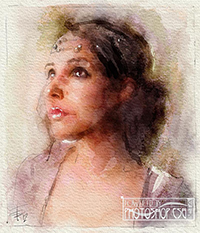
Adobe Watercolour Assistant 1.0.4

Turn a photograph into a watercolour painting with some help from this step by step guided panel. Take the guess work out of choosing the correct brush. Just click! – And start painting.

This panel was a collaborative project done with Tim Shelbourne from London, England. In honor of this fact and because of my English heritage, I am now spelling WATERCOLOUR as Shakespeare intended. Check out the basic tutorial movie or just download the panel and give it a test drive.


Tim Shelbourne

http://www.timshelbourne

icon

CS6 (ONLY!): Panel
Adobe Paper Texture Panel

Add textures to images with this great new Panel for Adobe Photoshop. Included with this panel is a wonderful sampler set of textures from Fly Paper Textures.

This new version will allow you to select a folder of your own textures and load them into the panel. Use the fly out menu to access this new feature. WARNING! If you target a folder containing very large images, or more than 20 images, then the loading process may take several minutes. I HIGHLY recommend that you use smaller textures when every possible.


Special Bonus!

Download the FREE Natural Bits Taster Pack. This is a special offer from the Russell Brown Show and Flypaper Textures.


NATURAL BITS TASTER PACK


-----------------------------------

GERMAN VERSION:


TUTORIAL


CS6 Version Installer


icon

CS6 (ONLY!): Panel

Adobe Painting Assistant 2.0.4

Turn a photograph into a painting with some help from this step by step guided panel. Take the guess work out of choosing the correct brush. Just click! – And start painting.

If you're interested in learning more about painting, then I highly recommend that you see John Derry's and Tim Shelbourne's web sites. They have an incredible collection of painting knowledge that you should check out.

A n older version that works with CS5 can be downloaded from this location.

Download File

John Derry:

http://expressivepixels.com/

Tim Shelbourne

http://www.timshelbourne

icon

CS5/CS6: Panel
Adobe Emailer Panel
2.4.0

Prepping images and attaching them to an email just got a lot easier with the Adobe Emailer panel. This panel takes advantage of new technology in Photoshop CS5 and CS6 to resize, save, sharpen, and email your photos all in one shot. Check out the video tutorial to see how it works.


---------------------------------

GERMAN VERSION:


TUTORIAL


CS5 Version Installer


CS6 Version Installer


scripts icon

CS5/CS6: Panel
Adobe Watermark Panel 2.2.1

Need to watermark a photo? You got it! Need to watermark 100 of them? No sweat. The all new Adobe Watermark panel takes all the hassle out of watermarking and let's you get back to work (or doing the other things you like to do) a lot faster. This new and improved version will only work with Adobe Photoshop CS5 and CS6.


---------------------------------

GERMAN VERSION:


TUTORIAL


INSTALLER


icon

CS6 (ONLY!): Panel
Edit Layers in ACR 1.1.6

This super advanced script will convert a standard layer in Photoshop CS6, into a Smart Object that can be edited with the Adobe Camera Raw tools. This is definitely for advanced users only. This new version supports layer masks, vector masks, and CMYK images. Follow the instructions in the tutorial video very carefully. If you do not set up your preferences correctly then this script will not work. You have been warned.


icon

CS5/CS6: Action
Smart Image Detailing

Learn to enhance the fine details in an image with this special technique developed by the photographer Calvin Hollywood. This tutorial also demonstrates how to combine these detailing techniques with Smart Objects.

icon

CS5/CS6: Action
Star Trails Action and Layer Opacity Adjustments

Discover the new Star Trail Action that is now built into Adobe Photoshop CS5. Also learn how to adjust the opacity of multiple selected layers.

icon

CS5/CS6: Script: JUST FIX IT

Preference Remover Utility

Have any of my scripts and panels stopped working? In many cases removing the preference files for my scripts can solve several standard problems.  If you need help, then this handy little script may be the solution. Download this script then simply double click the script and it will launch inside of Adobe Photoshop. Follow the instructions in the script window, and then restart Adobe Photoshop. When it's done, then try using the script or panel again. No promises that this script will work, but if all else fails then it might do the trick.


Instructions:
1. Quit from  Adobe Photoshop.

2. Run the script "JUST FIX IT"

3. Restart Adobe Photoshop

4. Run the script or panel

5. Problem solved?


Adobe Photoshop Scripts CS5/CS6

     
scripts icon

CS5/CS6 Script:

Dr. Brown’s Services 2.3.1

Dr. Brown’s Services is a collection of time-saving utilities for designers and photographers. Use the new CS6 Extension Manager to install both the Mac and PC versions. If the Extension Manager does not work on your system, use the manual installation process instead. Installation will require that you be in the ADMINISTRATOR mode on a PC.


This installation includes:

Image Processor Pro

Stack-A-Matic

Place-A-Matic 8-bit

Place-A-Matic 16-bit

Trouble Shooting

Having trouble with any of my scripts? Then be sure and try my "JUST FIX IT" script that will remove all the damaged preference files. This could to the trick to solve your issues.


IMAGE PROCESSOR PRO


STACK-A-MATIC


PLACE-A-MATIC


Adobe Photoshop CS6 Installer


Adobe Photoshop CS5 Installer


scripts icon

CS5/CS6 Script:

Stacking Multiple Images with Stack-A-Matic

Dr. Brown’s Services 2.3.1

Posted 08/23/12

Learn some advanced techniques for working with Dr. Brown’s Stack-A-Matic and time-lapse night photography. The images used in this demo are courtesy of Scott Martin Photography.


Adobe Photoshop CS6 Installer


Adobe Photoshop CS5 Installer


Adobe Photoshop Scripts CS5 (Only)

     
scripts icon

CS5 (ONLY) Script: Dr. Brown’s Services 2.0.6

(Older version with fewer features)

Posted 03/26/11

Dr. Brown’s Services is a collection of time-saving utilities for designers and photographers. Use the new CS5 Extension Manager to install both the Mac and PC versions. If the Extension Manager does not work on your system, use the manual installation process instead.

This installation includes:

Dr. Brown’s 1-2-3 Process

Dr. Brown’s Services

Stack-A-Matic (For CS5 Extended Only)

Place-A-Matic 8-bit

Place-A-Matic 16-bit

Trouble Shooting

Having trouble with any of my scripts. Have they stopped working correctly? Then be sure and try my "JUST FIX IT" script that will remove all the preference files.

Overview Tutorial


Stacks and Placing Tutorial


German installers and information

Click here for German tech support

Dr. Brown’s Services

icon

CS5 (ONLY) Script:

Painting Assistant Panel 1.0.5

Posted 10/14/10

Turn a photograph into a painting with some help from this step-by-step panel. Take the guess work out of choosing the correct brush. Just click and start painting!

Note: this updated version has new warning messages to help with the painting workflow. This panel will work best with a Wacom Intuos 4/5 and an Art Pen.

If you’re interested in learning more about painting, I highly recommend that you check out John Derry’s website. He has an incredible collection of brushes that every Photoshop user should own. expressivepixels.com/artists_brushes.html


German installers and information

Click here for German

tech support

Painting Assistant panel

icon

CS5 (ONLY) Script:

Edit Layers in ACR 1.1.5

Posted 08/28/11

This super advanced script will convert a standard layer in Photoshop CS5, or CS6, into a Smart Object that can be edited with the Adobe Camera Raw tools. This script will also support layers containing Layer Masks and Vector Masks. I highly recommend that you watch the tutorial movie before using this script.

     
  ARCHIVES (Looking for really old stuff?)  
 

Sorry, no technical support is available for my scripts
Please report any web-related problems by sending an email to the address listed below. Sorry for the inconvenience, but I will not have the chance to respond to questions relating to these scripts. Please only use them if you feel confident that you can remove them if something should go wrong. My scripts are definitely not perfect and they will NOT work on every system configuration. Use them at your own risk.

Also, PLEASE tell me if you like these scripts and if you are using them. I can always use encouragement to keep making these utilities.  THANKS!!!

For immediate response to your issues and questions, check out the Adobe Forum:

forums.adobe.com

Also be sure to visit the Adobe TV site for a great collection of information and tutorials:
tv.adobe.com

Sincerely,
Russell Brown
russellprestonbrown@mac.com

Intellectual property; limited license to users
The Materials and Services on this Site, as well as their selection and arrangement, are protected by copyright, trademark, patent, and/or other intellectual property laws, and any unauthorized use of the Materials or Services at this Site may violate such laws and the Terms of Use. Except as expressly provided herein, Adobe and its suppliers do not grant any express or implied rights to use the Materials and Services. You agree not to republish, transmit, modify, rent, lease, loan, sell, assign, distribute, license, sublicense, reverse engineer, or create derivative works based on the Site, its Materials, or its Services or their selection and arrangement, except as expressly authorized by Russell Brown. Just ask me – I'm open to all kinds of ideas to help make my material available to more users.

Adobe, Acrobat, Adobe Bridge, Adobe Eazel, Illustrator, InDesign, Lightroom, Photoshop, Photoshop Camera Raw, and Pixel Bender are either registered trademarks or trademarks of Adobe Systems Incorporated in the United States and/or other countries. Apple, iPad, iPhone, Mac, Macintosh, Mac OS, QuickTime, and Safari are trademarks of Apple Inc., registered in the U.S. and other countries. Microsoft, Internet Explorer, Windows, Windows Vista are registered trademarks of Microsoft Corporation in the United States and/or other countries. All other product names may be trademarks of their respective companies.


back to top